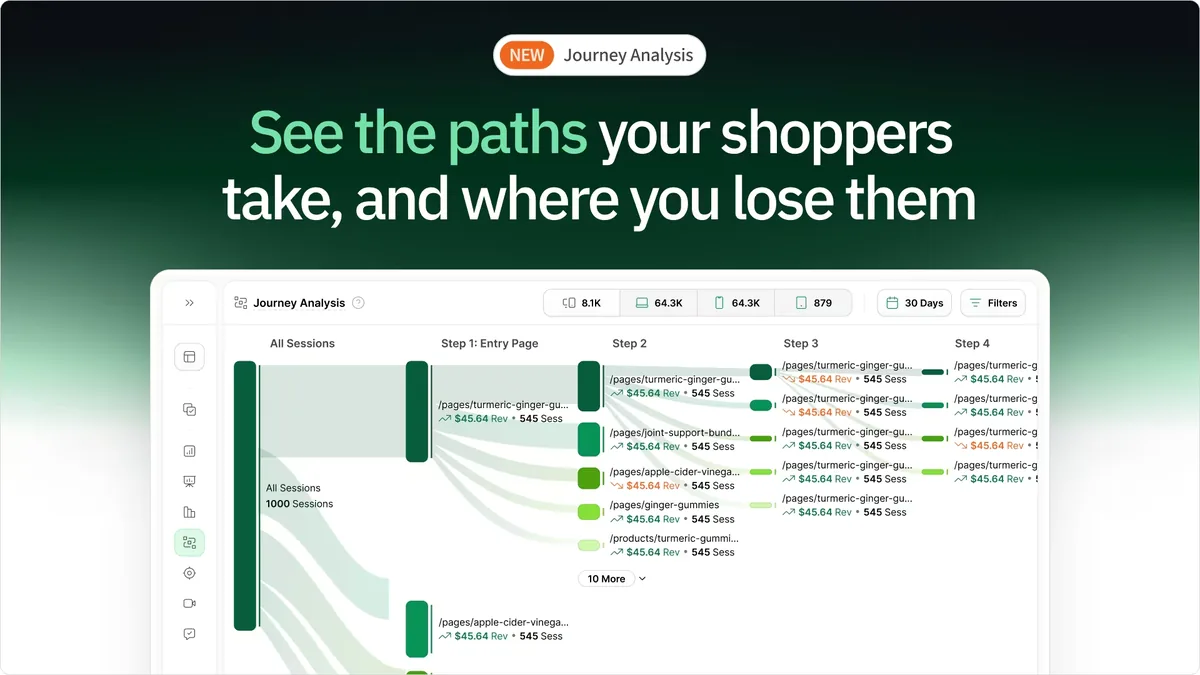
Heatmap ranks as the best WooCommerce heatmap tool because it tracks revenue per click and integrates directly with WooCommerce order data. While most analytics tools show you where visitors click, Heatmap connects those clicks to actual purchase data so you can optimize based on revenue impact rather than engagement metrics.
WooCommerce powers over 30% of all online stores, but most heatmap tools treat it like any other website. You need tools that understand WooCommerce's plugin architecture, work with popular WordPress themes, and actually integrate with your order data instead of just counting pageviews.
The difference between a generic heatmap tool and a WooCommerce-optimized one shows up fast. Can it track product variation selections? Does it handle WooCommerce checkout tracking? Can it connect clicks on your product pages to completed orders? Most tools can't.
Before exploring WooCommerce-specific options, check out our guides on ecommerce heatmap tools, Shopify heatmap platforms, BigCommerce analytics, and alternatives to Hotjar and Crazy Egg. We've also covered clickmaps, scrollmaps, and website heatmap tools if you need background. Now let's look at tools that actually work well with WooCommerce.
Why WooCommerce Stores Need Specialized Heatmap Tools
WooCommerce runs on WordPress, which means you're dealing with plugin conflicts, theme compatibility issues, and performance concerns that don't exist on hosted platforms like Shopify. Your heatmap tool needs to understand this environment.
Plugin Compatibility: Generic heatmap tools sometimes conflict with popular WooCommerce plugins like page builders (Elementor, Divi), checkout customizers, or product display plugins. You need tools tested against common WooCommerce plugin stacks.
Theme Variations: WooCommerce stores use thousands of different WordPress themes. Some heatmap tools work great with default themes but break with custom designs or page builders.
Checkout Tracking: WooCommerce checkout happens on your own site, unlike Shopify or BigCommerce. Good heatmap tools track the entire checkout process including cart, billing, shipping, and payment pages.
Order Data Integration: True WooCommerce integration means pulling data from your WordPress database to connect visitor behavior to actual orders. Most tools just track front-end clicks without backend integration.
Performance Impact: WordPress stores already juggle multiple plugins. Bad heatmap tools add several seconds of load time. Good ones add under 100ms and don't slow your store.
Page Builder Support: If you use Elementor, Divi, Beaver Builder, or WPBakery, your heatmap tool needs to track dynamically generated content these builders create.
How We Evaluated These Tools
We focused on features that matter specifically for WooCommerce store owners:
WooCommerce Integration Quality: Does it pull data from WooCommerce's database? Does it understand WooCommerce-specific events like "Add to Cart" or product variation selections?
WordPress Plugin Availability: Is there a WordPress plugin, or do you need to paste code?
Theme Compatibility: Does it work with popular WooCommerce themes like Storefront, Astra, OceanWP, and Flatsome?
Performance Impact: How much does it slow down your WordPress site?
Revenue Attribution: Does it connect clicks to WooCommerce order data?
Checkout Tracking: Can it track WooCommerce's multi-step checkout process?
We tested each tool on actual WooCommerce stores, verified plugin conflicts, and measured performance impact using GTmetrix and PageSpeed Insights.
The 7 Best WooCommerce Heatmap Tools
1. Heatmap: Best for Revenue Attribution
Best for: WooCommerce stores wanting to connect behavior to revenue
Pricing: Starts at $117/month for stores with $0-$4.9M ARR
Key Features:
- Revenue per click tracking
- WooCommerce database integration
- WordPress plugin available
- AI-driven recommendations
- Automatic WooCommerce order sync
Why It's Best: Heatmap integrates directly with WooCommerce's database, pulling order data to connect every click to actual revenue. When you see your product comparison table generated $5,800 in monthly sales while your hero image only drove $1,900, you're making decisions based on dollars.
The platform tracks WooCommerce-specific interactions: product variation selections, cart additions, and checkout completion. Unlike generic tools that just capture clicks, Heatmap knows when someone clicked your size guide and then completed a $150 order.
WooCommerce Integration Details:
- WordPress plugin available
- Pulls order data from WooCommerce database
- Works with all major WooCommerce themes
- Tracks custom product types
- Handles WooCommerce Subscriptions and Memberships
Pros:
- Only tool showing revenue per click for WooCommerce
- Native WordPress plugin
- No conflicts with major WooCommerce plugins
- Under 50ms added load time
Cons:
- Higher price than basic analytics tools
- Less useful for very low-traffic stores
- Plugin installation required
Rating: 4.7/5
Free Trial: 14 days
2. MonsterInsights: Best for Google Analytics Integration
Best for: WooCommerce stores using Google Analytics
Pricing: Starts at $99/year
Key Features:
- Google Analytics integration
- Enhanced ecommerce tracking
- Dashboard within WordPress
- WooCommerce-specific reports
- Popular products tracking
Why WooCommerce Stores Use It: MonsterInsights connects Google Analytics to WooCommerce through a WordPress plugin. You get ecommerce tracking, conversion data, and product performance reports directly in your WordPress dashboard.
The plugin handles enhanced ecommerce setup automatically, tracking product impressions, cart additions, and checkout steps without manual Google Analytics configuration.
WooCommerce Integration Details:
- WordPress plugin with WooCommerce addon
- Integrates with Google Analytics 4
- Tracks WooCommerce checkout funnel
- Shows product performance data
Pros:
- WordPress plugin installation
- Google Analytics integration
- WooCommerce-specific reporting
- Popular in WordPress community
Cons:
- No visual heatmaps (just GA data)
- Requires Google Analytics account
- Yearly pricing not monthly
- No revenue per element tracking
Rating: 4.6/5
Free Trial: 14-day money-back guarantee
3. Hotjar: Best for User Feedback
Best for: WooCommerce stores wanting heatmaps plus surveys
Pricing: Starts at $39/month
Key Features:
- Click, move, and scroll heatmaps
- Session recordings
- On-site surveys
- Feedback widgets
- Form analysis
Why It Works: Hotjar installs on WooCommerce through JavaScript snippet or WordPress plugins (unofficial community plugins available). The tool provides visual heatmaps, scrollmaps, and session recordings, plus survey features.
The feedback widgets let you ask WooCommerce customers why they didn't buy or what confused them during checkout.
WooCommerce Integration Details:
- Manual JavaScript installation or community plugins
- Works with most WordPress themes
- Tracks WooCommerce checkout
- No direct WooCommerce database integration
Pros:
- Survey and feedback tools
- Large user community
- Visual heatmaps
- Session recordings
Cons:
- No revenue attribution for WooCommerce
- No official WordPress plugin
- Generic tool not built for ecommerce
- Limited WooCommerce-specific features
Rating: 4.3/5
Free Trial: Yes, limited features
4. Microsoft Clarity: Best Free Option
Best for: WooCommerce stores testing heatmaps
Pricing: Free forever
Key Features:
- Unlimited heatmaps
- Session recordings
- Rage click detection
- Dead click identification
- Fast, clean interface
Why Consider It: Microsoft Clarity provides core heatmap functionality for free with no usage limits. For WooCommerce stores on tight budgets, it's a risk-free way to see where visitors click and scroll.
The rage click detection finds spots where WordPress visitors repeatedly click things that don't work, common when product images aren't zoomable or WooCommerce filters break.
WooCommerce Integration Details:
- Manual JavaScript installation
- Compatible with WordPress themes
- No WooCommerce-specific features
- Tracks front-end interactions only
Pros:
- Completely free
- No session limits
- Rage click detection
- Clean visualization
Cons:
- Manual installation
- No revenue tracking
- No WooCommerce integration
- No WordPress plugin
Rating: 4.5/5
Free Trial: Not applicable (permanently free)
5. Lucky Orange: Best Budget Option
Best for: Small WooCommerce stores needing heatmaps and chat
Pricing: Starts at $10/month
Key Features:
- Real-time heatmaps
- Live chat integration
- Dynamic click tracking
- Session recordings
- Form analytics
Why WooCommerce Stores Use It: Lucky Orange costs $10/month and includes live chat with heatmaps. For small WooCommerce stores, you get behavior tracking and customer chat for less than most standalone tools.
The real-time dashboard shows current visitors on your WooCommerce store and their behavior as it happens.
WooCommerce Integration Details:
- Manual JavaScript installation
- Works with WordPress themes
- Live chat widget included
- Tracks WooCommerce cart
Pros:
- Very affordable
- Live chat included
- Real-time monitoring
- Good for small stores
Cons:
- Session limits on base plan
- No revenue tracking
- Manual installation
- No WordPress plugin
Rating: 4.3/5
Free Trial: 7 days
6. Mouseflow: Best for Checkout Analysis
Best for: WooCommerce stores optimizing checkout
Pricing: Starts at $39/month
Key Features:
- Session replays with filtering
- Funnel analysis
- Form analytics
- Friction scoring
- Geographic heatmaps
Why It Helps: Mouseflow's funnel analysis tracks WooCommerce checkout abandonment at the field level. You can see which specific billing or shipping fields cause people to quit.
The form analytics show you that asking for a phone number drops WooCommerce checkout completion by a specific percentage.
WooCommerce Integration Details:
- Manual JavaScript installation
- Compatible with WordPress themes
- Tracks WooCommerce checkout steps
- No WooCommerce database integration
Pros:
- Detailed funnel tracking
- Field-level form analytics
- Friction scoring
- Works well with WooCommerce
Cons:
- No revenue attribution
- Manual installation
- Session limits on lower tiers
- No WordPress plugin
Rating: 4.6/5
Free Trial: 14 days
7. Crazy Egg: Best for A/B Testing
Best for: WooCommerce stores testing page layouts
Pricing: Starts at $29/month
Key Features:
- Click heatmaps and scrollmaps
- Built-in A/B testing
- Session recordings
- Snapshots for comparison
- Confetti view
Why Consider It: Crazy Egg includes A/B testing with heatmaps. If you're testing WooCommerce product page layouts or checkout variations, you get both tools in one package.
The snapshots feature saves your page state before and after changes, making it easy to compare engagement.
WooCommerce Integration Details:
- Manual JavaScript installation
- Works with WordPress themes
- Tracks WooCommerce pages
- No WooCommerce database integration
Pros:
- A/B testing included
- Confetti view for segmentation
- Snapshot comparisons
- Affordable pricing
Cons:
- No revenue tracking
- Manual installation
- Dated interface
- No WordPress plugin
Rating: 4.4/5
Free Trial: 30 days
Quick Comparison Table
| Tool | Best For | Starting Price | Revenue Tracking | WordPress Plugin | Rating |
|---|---|---|---|---|---|
| Heatmap | Revenue attribution | $117/month | ✅ Yes | ✅ Yes | 4.7/5 |
| MonsterInsights | GA integration | $99/year | ⚙️ Order-level | ✅ Yes | 4.6/5 |
| Hotjar | User feedback | $39/month | ❌ No | 🟡 Community only | 4.3/5 |
| Microsoft Clarity | Free option | Free | ❌ No | ❌ No | 4.5/5 |
| Lucky Orange | Budget + chat | $10/month | ❌ No | ❌ No | 4.3/5 |
| Mouseflow | Checkout analysis | $39/month | ❌ No | ❌ No | 4.6/5 |
| Crazy Egg | A/B testing | $29/month | ❌ No | ❌ No | 4.4/5 |
WooCommerce-Specific Considerations
Plugin Conflicts: Test your heatmap tool with your existing plugin stack before committing. Common conflicts occur with caching plugins (WP Rocket, W3 Total Cache), page builders (Elementor, Divi), and security plugins.
Theme Compatibility: Most tools work with popular WooCommerce themes like Storefront, Astra, OceanWP, and Flatsome. Custom themes sometimes cause tracking issues. Test thoroughly if you're using a custom design.
Checkout Page Tracking: WooCommerce checkout happens on your site, giving heatmap tools more access than Shopify or BigCommerce. Good tools track cart, billing, shipping, and payment steps. Verify your chosen tool captures the full funnel.
Performance Impact: WordPress stores already run multiple plugins. Add a heatmap tool that loads asynchronously and adds under 100ms. Avoid tools that add 2-3 seconds of load time.
Page Builder Support: If you use Elementor, Divi, or Beaver Builder to design product pages, verify your heatmap tool tracks dynamically generated content. Some tools struggle with builder-created layouts.
WooCommerce Blocks: The new WooCommerce block-based cart and checkout require updated tracking. Check if your heatmap tool supports WooCommerce Blocks or only classic shortcode-based pages.
Multi-Site Networks: Running multiple WooCommerce stores on a WordPress multisite network? Check whether your heatmap tool charges per site or offers network licensing.
How to Install Heatmap Tools on WooCommerce
For WordPress Plugin Installations (Heatmap, MonsterInsights):
Step 1: Log into WordPress admin dashboard Step 2: Navigate to Plugins > Add New Step 3: Search for the plugin name or upload plugin file Step 4: Click "Install Now" then "Activate" Step 5: Follow plugin setup wizard for WooCommerce integration Step 6: Verify tracking appears in plugin settings
For Manual JavaScript Installations (most tools):
Step 1: Get tracking code from the analytics platform Step 2: Log into WordPress admin Step 3: Navigate to Appearance > Theme Editor Step 4: Open header.php file (or use Code Snippets plugin) Step 5: Paste tracking code before closing </head> tag Step 6: Save and verify installation
Recommended Method: Use a code management plugin like "Insert Headers and Footers" or "Code Snippets" instead of editing theme files directly. This prevents losing tracking code when updating themes.
For Heatmap Specifically:
Step 1: Sign up at heatmap.com Step 2: Select WooCommerce as your platform Step 3: Download WordPress plugin or get tracking code Step 4: Install and activate plugin Step 5: Connect to WooCommerce in plugin settings Step 6: Verify data collection starts within 24 hours
Common Questions About WooCommerce Heatmap Tools
Do heatmap tools slow down WooCommerce stores?
Quality tools add minimal load time, typically under 100ms. We tested Heatmap and saw less than 50ms added to WooCommerce page loads. Poor tools can add 2-3 seconds, hurting conversion rates and SEO.
Can these tools track WooCommerce checkout?
Yes. Unlike Shopify or BigCommerce where checkout is hosted separately, WooCommerce checkout happens on your site. Good heatmap tools track cart, billing, shipping, and payment pages completely.
Which tool integrates best with WooCommerce?
Heatmap provides the deepest integration through WordPress plugin and WooCommerce database access. MonsterInsights offers good integration for Google Analytics data. Other tools use JavaScript tracking without backend integration.
Do I need a developer to install these tools?
For plugin installations, no. For JavaScript installations, technically no, but you need comfort editing WordPress files or using code management plugins. If you're nervous, hire a WordPress developer for 30 minutes of work.
Can heatmap tools track WooCommerce product variation selections?
Good ones can. Heatmap automatically tracks when customers select different sizes, colors, or product attributes. Generic tools might need manual event setup for variation tracking.
What about WooCommerce Subscriptions and Memberships?
Heatmap works with WooCommerce Subscriptions and Memberships. MonsterInsights tracks subscription signups. Other tools track behavior but don't distinguish between one-time purchases and subscriptions.
Do these tools work with WooCommerce Blocks?
Heatmap supports WooCommerce Blocks. MonsterInsights works with both classic and block-based checkout. Hotjar and other generic tools should work but may need verification for block-based pages.
Can I track multiple WooCommerce stores?
Heatmap supports multiple stores under one account. MonsterInsights requires separate licenses per site. Other tools typically charge per site.
What about GDPR compliance for WooCommerce stores?
Most tools offer GDPR-compliant modes that anonymize visitor data. You're responsible for adding heatmap tracking to your privacy policy and cookie consent. Check each tool's GDPR documentation.
Do these tools work with WooCommerce + Elementor/Divi?
Yes, but test thoroughly. Heatmap, MonsterInsights, and Microsoft Clarity handle page builder content well. Hotjar and Mouseflow work but might need manual event setup for builder-created elements.
Ready to Install Heatmap WordPress Plugin
Most analytics tools show you traffic and clicks. Only Heatmap connects that behavior to your WooCommerce order data, showing you which page elements actually drive revenue for your store. Ready to see which clicks generate sales? Install the Heatmap WordPress plugin and start tracking revenue per interaction.

Dylan AnderPublished December 1, 2025