Ever wondered how many users actually click your CTA buttons—or if they’re being ignored altogether?Tracking button clicks in Google Analytics 4 isn't just about numbers; it's about understanding user behavior and optimizing your site for better conversions.
This blog post breaks down button click tracking using Google Tag Manager, so you can:
- Set up click tracking for button clicks, form submissions, and outbound links
- Use event parameters and custom event tracking for deeper insights
- Troubleshoot tracking setup with preview mode and Google Tag Assistant
Let's get started.
TL;DR
- Google Analytics 4 (GA4) tracks button clicks, but setting it up requires Google Tag Manager (GTM), event parameters, and custom triggers.
- GA4’s enhanced measurement can track outbound link clicks and file downloads automatically, but button click tracking needs manual configuration.
- Using click classes, click variables, and custom parameters in GTM helps track specific user interactions like CTA clicks and form submissions.
- Preview mode and Google Tag Assistant help test your tracking setup before publishing changes.
- GA4 lacks revenue attribution, requiring tools like heatmapAI to analyze which clicks lead to sales and conversions.
- heatmapAI offers AI-powered CRO insights, revenue-based heatmaps, scroll maps, and screen recordings to provide deep user behavior insights beyond GA4.
- GA4 is great for standard event tracking, but heatmapAI is the best alternative for businesses focused on conversion rate optimization (CRO) and revenue-driven analytics.
What Is a Click Tracker & How Does it Work
A click tracker is a tool that monitors and records when users interact with elements on a web page, such as button clicks, link clicks, track clicks, form submissions, and form submissions. In Google Analytics 4, click tracking helps analyze user behavior, revealing which elements drive engagement and how visitors interact with your site.
Tracking clicks involves setting up event tracking using Google Tag Manager or Google Analytics with event name and parameters. When a user clicks a button or just links, the tracker logs details like the click ID, click URL, and event name, allowing you to see patterns in engagement.
With automatic click tracking enabled, GA4 can track outbound link and submit button clicks and file downloads without extra setup. For more advanced tracking—such as submit button and click tracking or custom parameters—you'll need to configure a new tag and define trigger configurations to capture specific actions.
Types of Click Tracking Analysis
- Website Click Tracking: This method tracks user clicks on web page elements such as button clicks, link clicks, and form submissions. By analyzing these clicks in Google Analytics, you gain a deeper understanding of how website visitors interact with different elements and can identify areas for improvement. Using Google Tag Manager to configure event tracking ensures that every interaction is properly logged in your Google Analytics account.
- Rage Clicks: Rage clicks occur when users repeatedly click on unresponsive elements or areas on the web page. These actions can be tracked using Google Analytics event tracking, helping identify usability issues that frustrate users. Setting up a new trigger in your Google Tag Manager account with custom parameters can help capture rage clicks effectively.
- Dead Clicks: Dead clicks are interactions where users click on non-interactive elements, such as images or static text, that do not lead anywhere. This data can be tracked using click event monitoring in Google Analytics 4. Enabling click variables and configuring a generic click trigger in Google Tag Manager ensures these clicks are recorded, helping to optimize user behavior and improve site functionality.
- URL Click Tracking: This method monitors clicks on specific URLs within your online store or web page. Setting up tag configuration in Google Analytics 4 allows you to track outbound link clicks and measure how different campaigns drive traffic. By using preview mode and Google Tag Assistant, you can verify whether the tracking setup is correctly logging clicks in Google Analytics.
- Email Click Tracking: Email link tracking captures how users interact with links inside your marketing emails. Configuring event parameters in Google Analytics 4 provides insights into engagement levels and helps refine email strategies. By setting up a new tag in your Google Tag Manager, you can track which outbound links lead users back to your website.
- Button Click Tracking: This tracking type monitors button clicks in Google Analytics to assess the performance of call-to-action buttons. Setting up button click tracking requires enabling click variables, configuring the trigger type, and defining a custom event with custom dimensions. By analyzing button clicks, you can see which elements drive conversions and adjust your Google Analytics tag settings to track button click events more effectively.
💡 Read Next: How to Track Clicks On Your Website Easily
Tracking Button Clicks in Google Analytics 4
Tracking button clicks in Google Analytics helps you understand how users interact with your site, which buttons drive engagement, and where potential friction points exist. With Google Tag Manager, you can set up button click tracking to capture this data and optimize user behavior for better conversions.
Create a New Tag in GTM
To start tracking button clicks, you'll need to install Google Tag Manager, set up a generic button click trigger, and configure a Google Analytics tag. In your Google Tag Manager account, follow these steps:
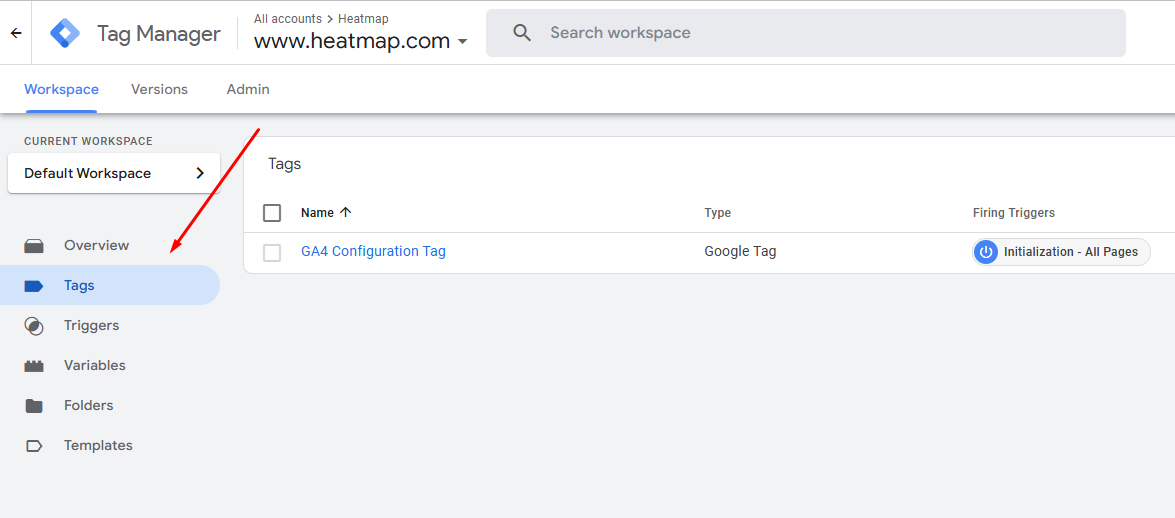
1. Navigate to the Google Tag Manager container and select Tags.
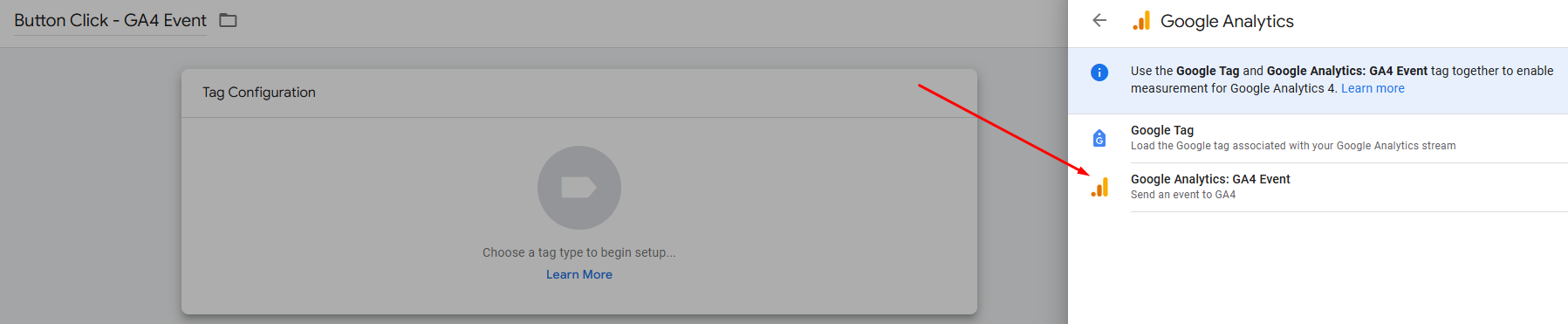
2. Click New from the right, and from Tag Configuration, choose Google Analytics > Google Analytics 4 - GA4 Event as the tag type.
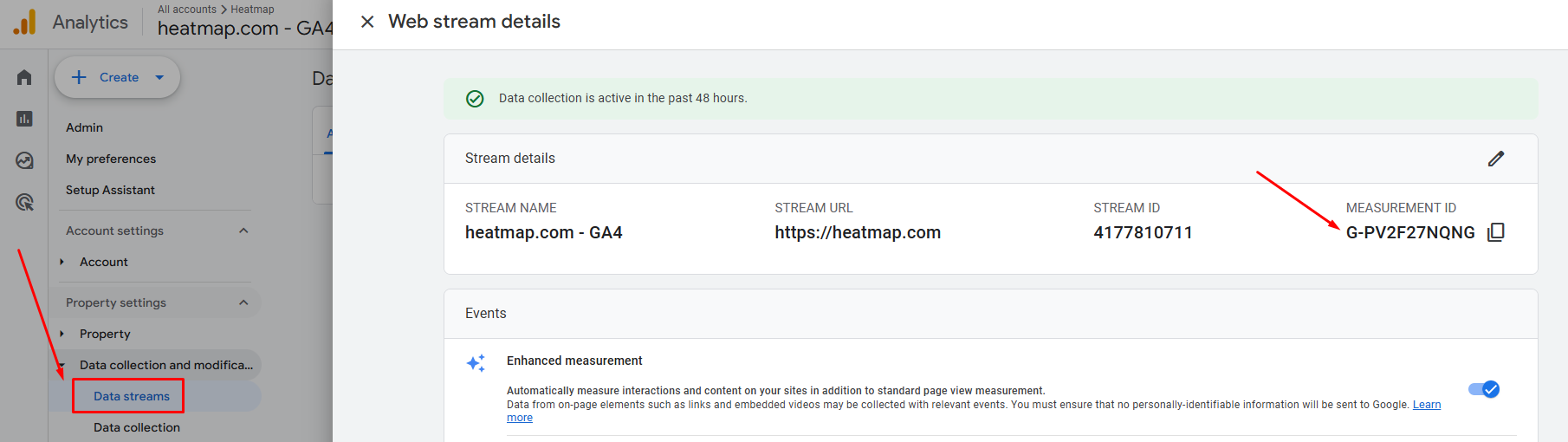
3. Copy the Measurement ID from your Google Analytics property by navigating to Admin > Data Streams. Note: You should already have the main GA4 tag configured in your GTM using this ID.
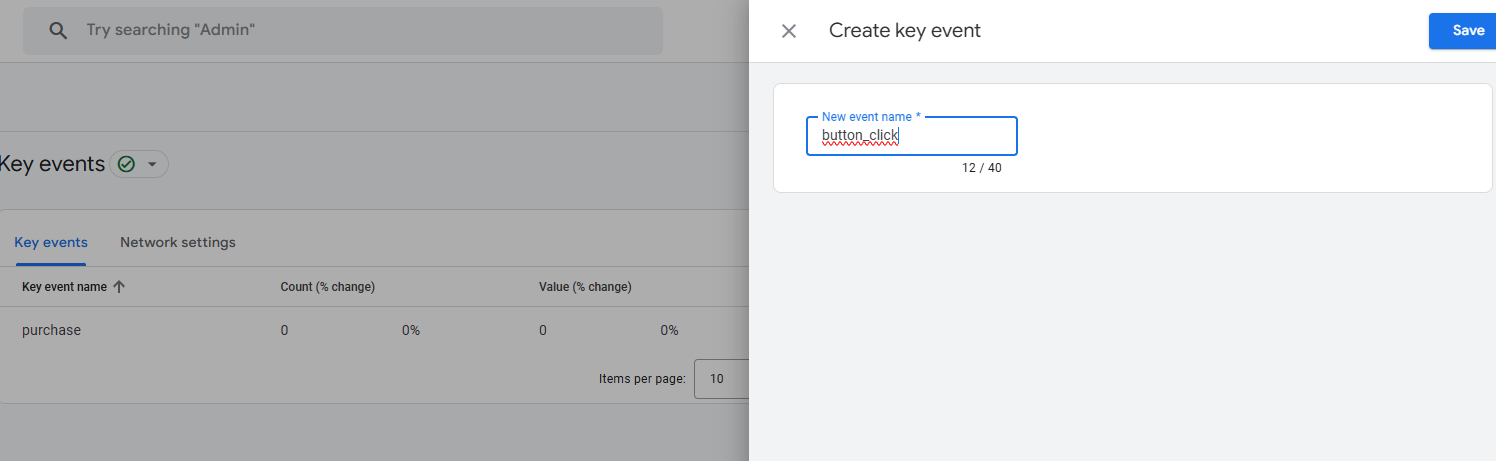
4. Put the Google Measurement ID and put Event Name in this format: button_click.
This event name later will be added to GA4.
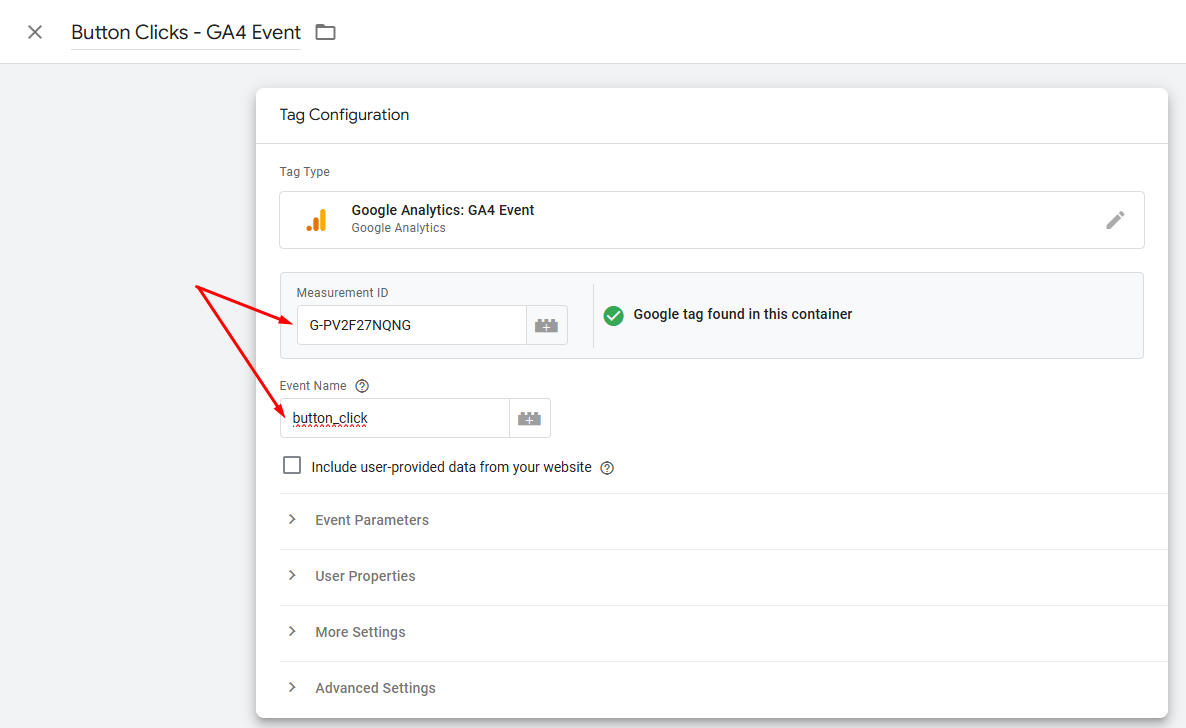
This tag will send data to GA4 when a button click event occurs.
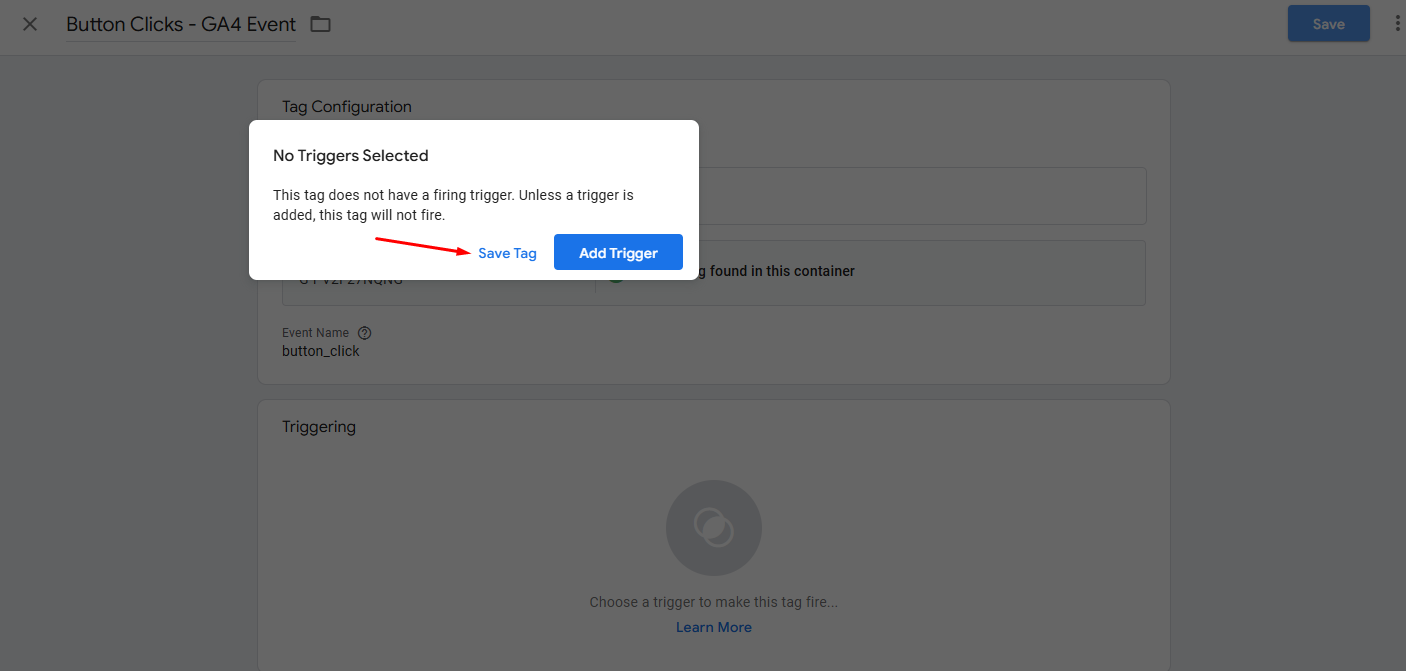
5. Let's Save our tag. It will ask us to add a trigger, but since we don't have one yet, let's create it. Click on Save Tag for now and we will return here later.
Create a Trigger for Button Clicks
A trigger tells GTM when to fire your tag. To track button clicks, follow these steps:
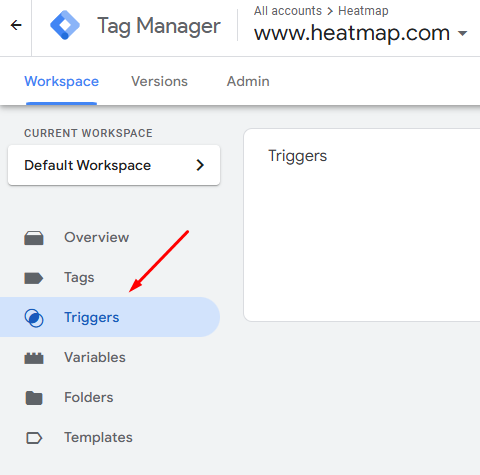
1. Go to Triggers in your Google Tag Manager container.
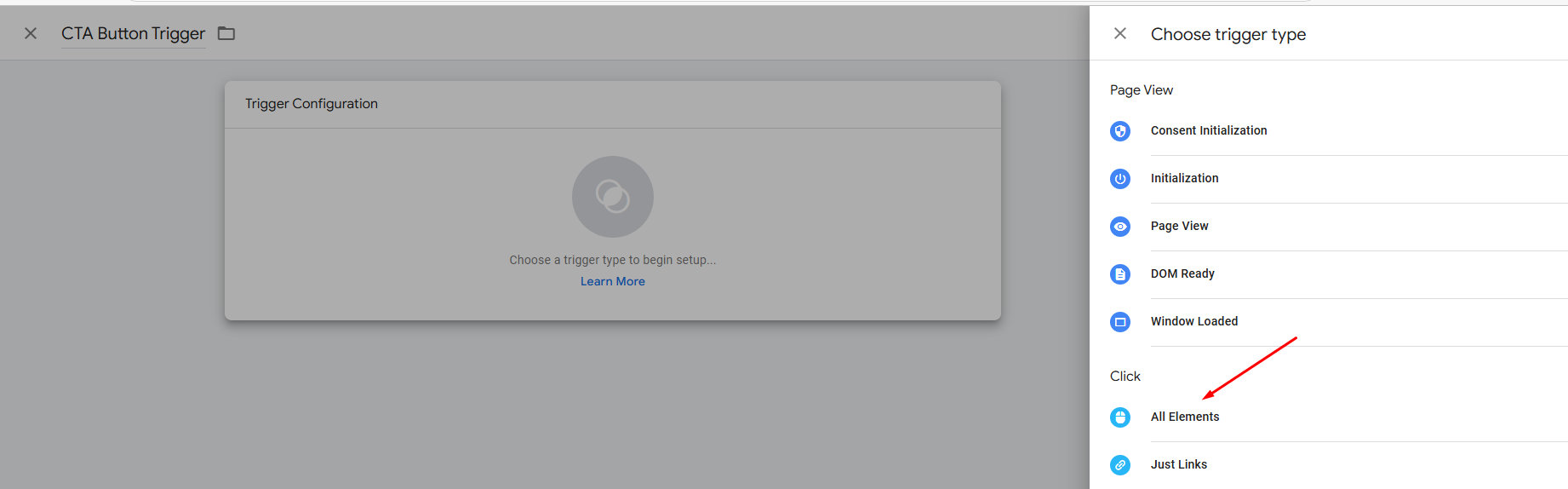
2. Click New from the right, name the trigger such as "CTA Button Trigger", and choose "All Elements" as the trigger type.
3. Select "Some Clicks" to track only relevant button clicks. This ensures that your event tracking is focused on tracking specific button clicks rather than logging every click on the page.
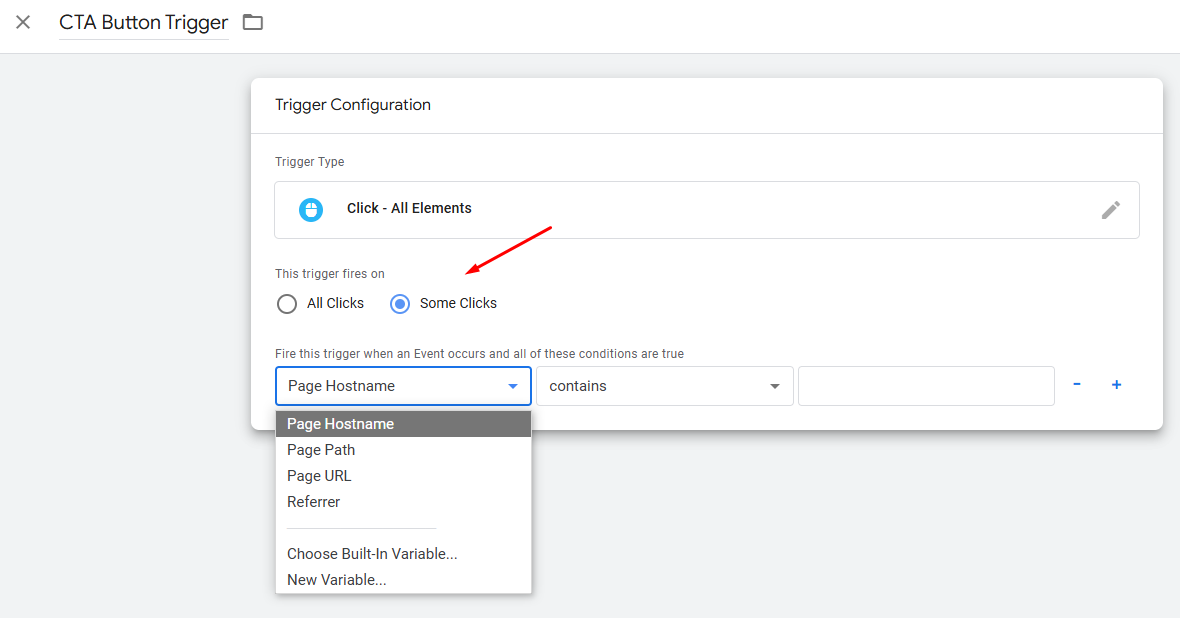
4. Now we need to refine the trigger settings to track button clicks accurately.
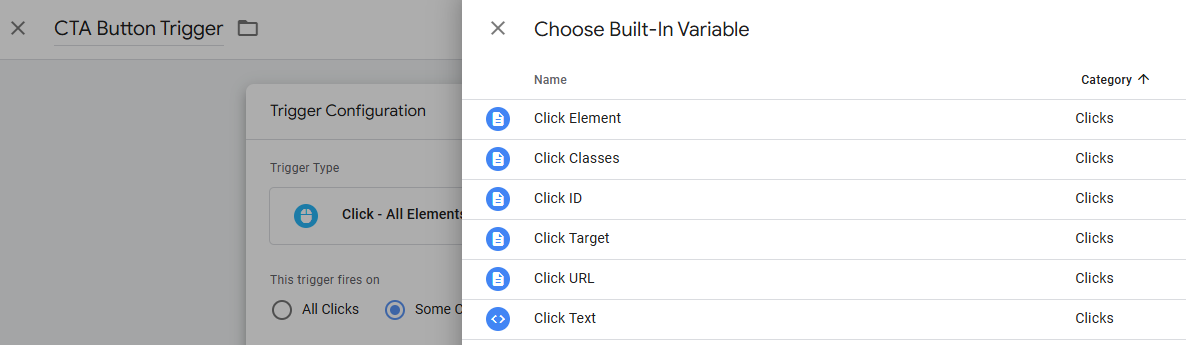
If you don't have the needed trigger variables here, click on Choose Build-In Variable to find the right trigger variables you want to use for your button clicks, for example:
- Click ID - if you want to reference your button by unique ID.
- Click Classes - if you want to reference your button by Class.
- Click URL - If you want to reference your button by URL.
- Click Text - If you want to reference your button by the button text.
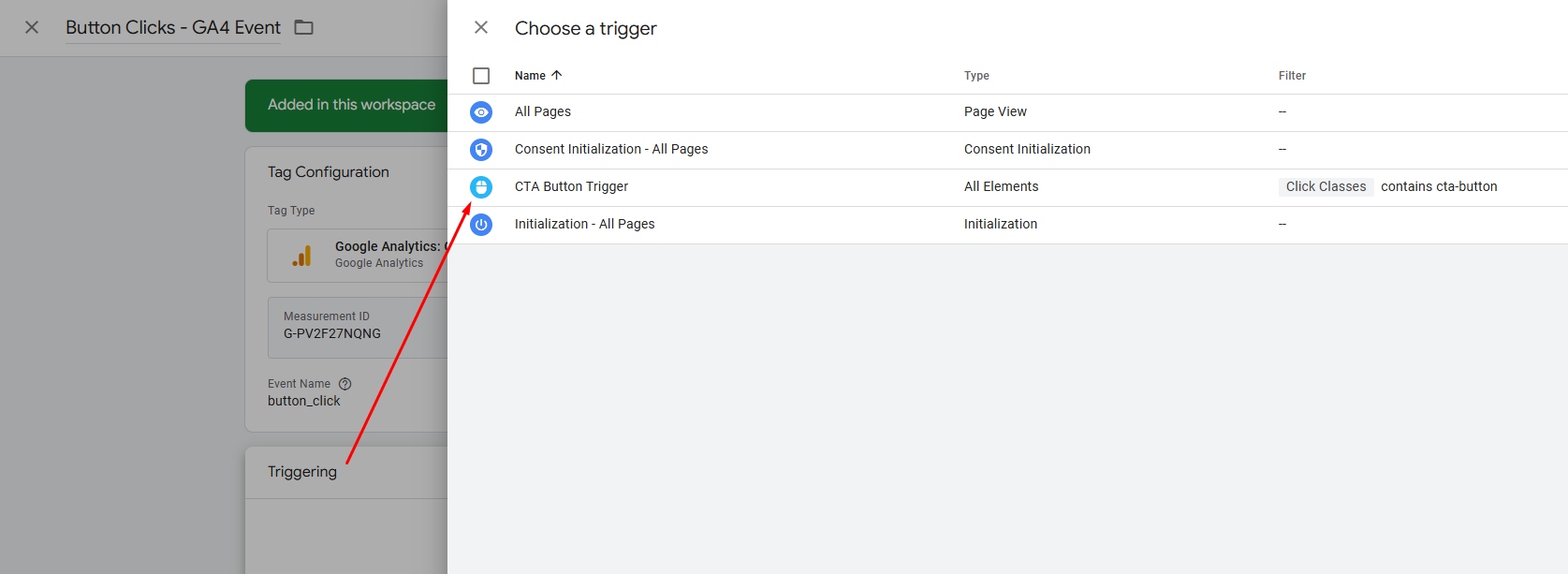
5. Let's say we want to track all CTA buttons that contain the class name: cta-button. In this case we will choose Click Classes > contains > cta-button.
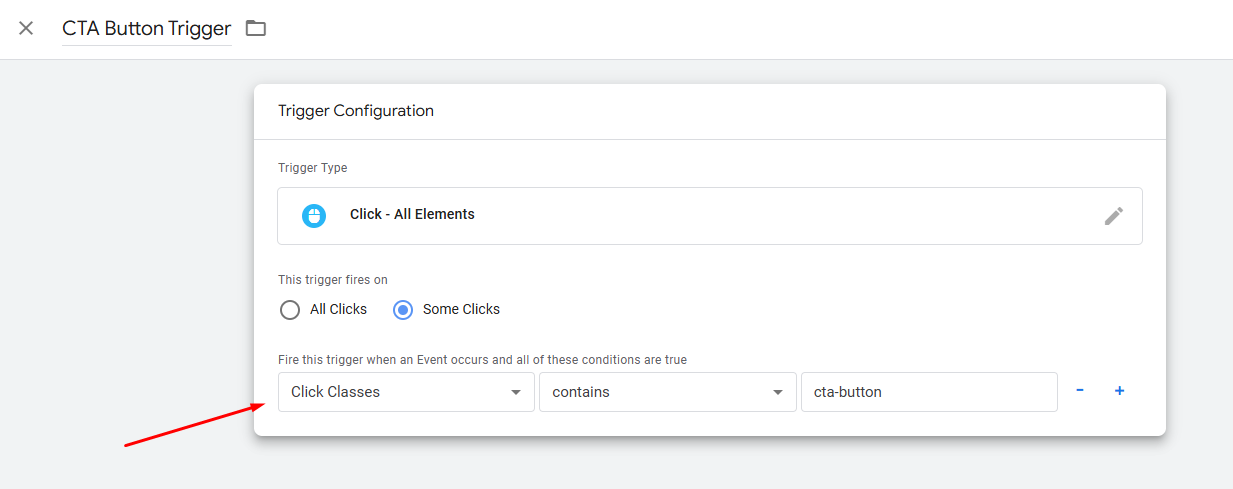
Other examples for referencing your button here can be:
- Click ID equals "submit-button" (if tracking unique button submissions).
- Click URL contains "checkout" (for tracking checkout button clicks).
- Click Text contains "Try Now" (for tracking buttons with specific text)
This setup ensures precise tracking and enhances measurement of how many users interact with key site elements.
6. When you are done click on Save to save your trigger. Now let's add this trigger to our previously created Tag.
Connecting The Trigger With The Tag
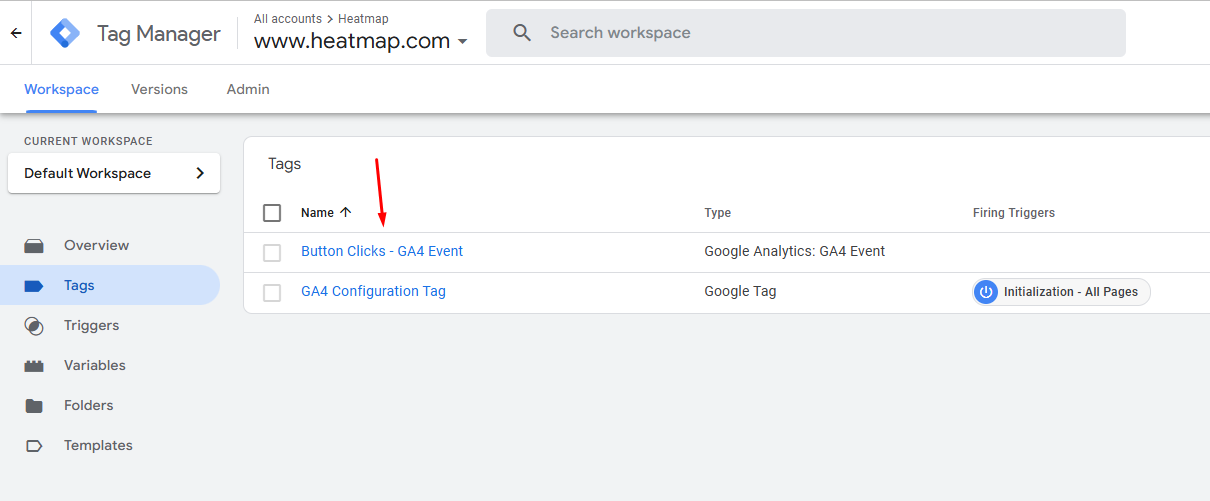
1. This step is very easy. Go to Tags and open your latest tag.
2. From the Triggering panel find your trigger.
3. Save your tag and you are ready.
Test Your Button Click Tracking
Before publishing button click tracking for your website or blog post, test your tracking setup using Google Tag Manager’s Preview mode.
1. Click Preview Mode in Google Tag Manager and enter your website URL.

2. Interact with the button and check if the tag fires.
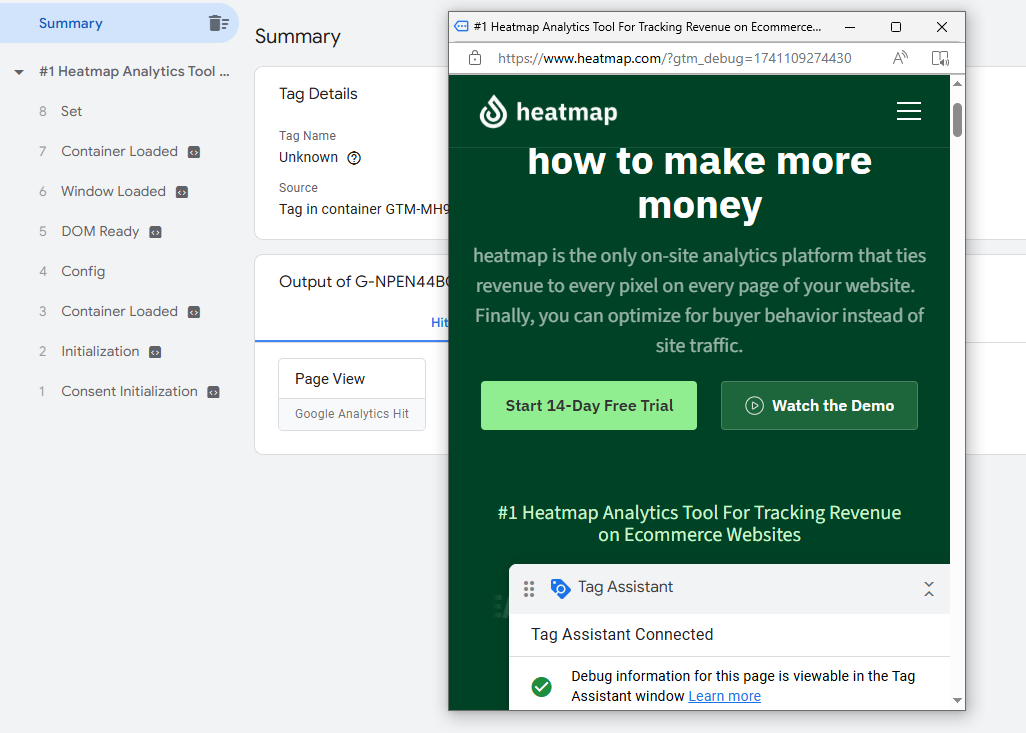
3. Use the Google Tag Assistant to verify that GTM is correctly capturing button clicks.
If the event doesn’t fire when you click on your button, double-check your trigger configuration and event parameters.
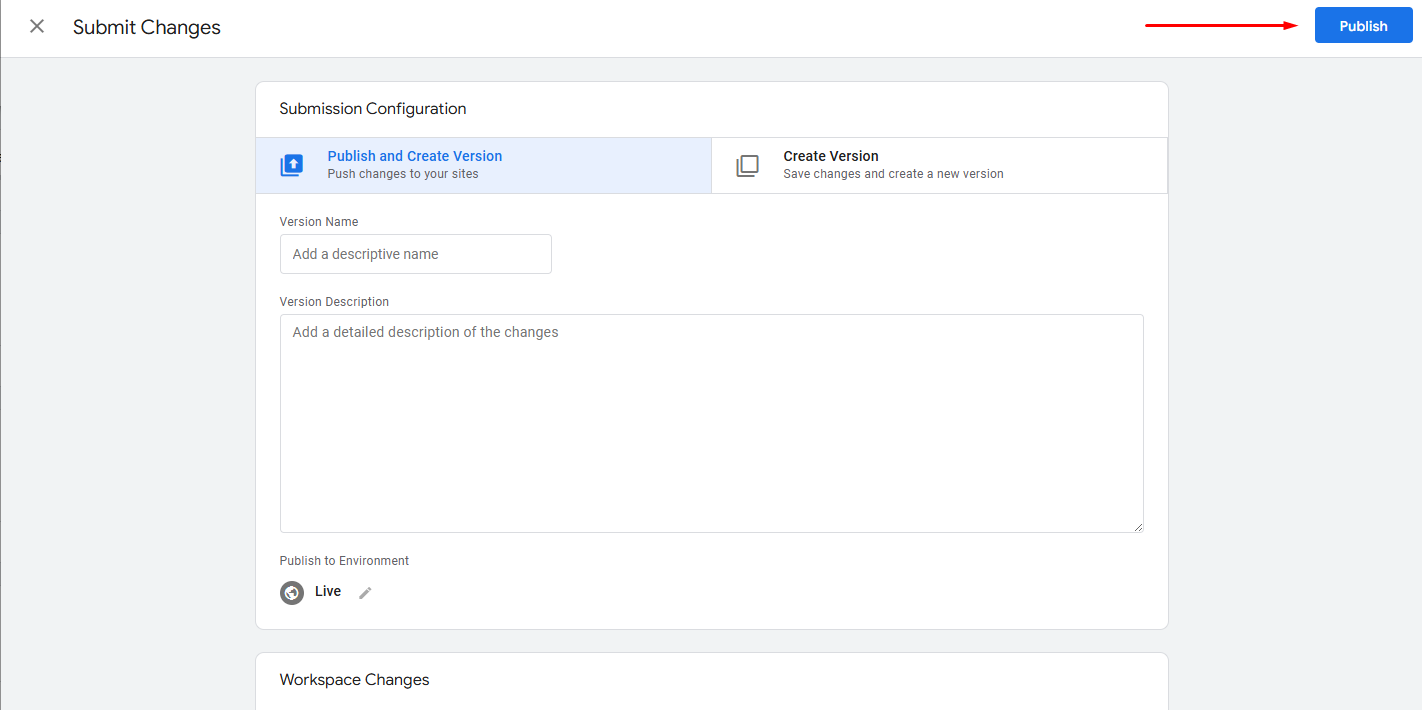
4. If it works properly, you can now publish the changes. Click on Submit at the top right and then Publish.
Verify Tracking in GA4
To confirm button click tracking is working:
1. In GA4, go to Reports > Realtime Overview.
2. Look for your custom event, such as button_click.
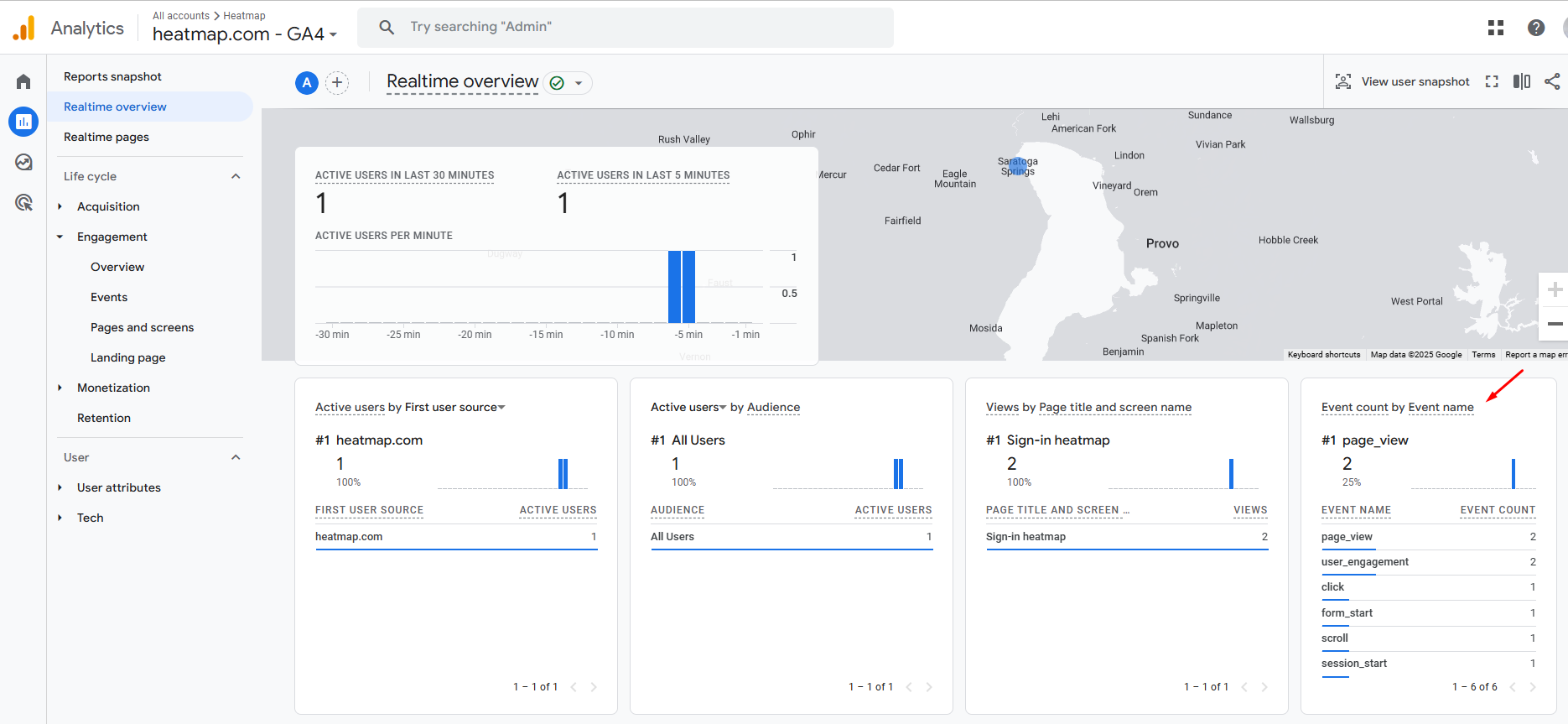
This step ensures that Google Analytics button clicks are logged correctly in GA4.
3. If you want to add this event as conversion (key event), go to Admin > Data Display > Key Events.
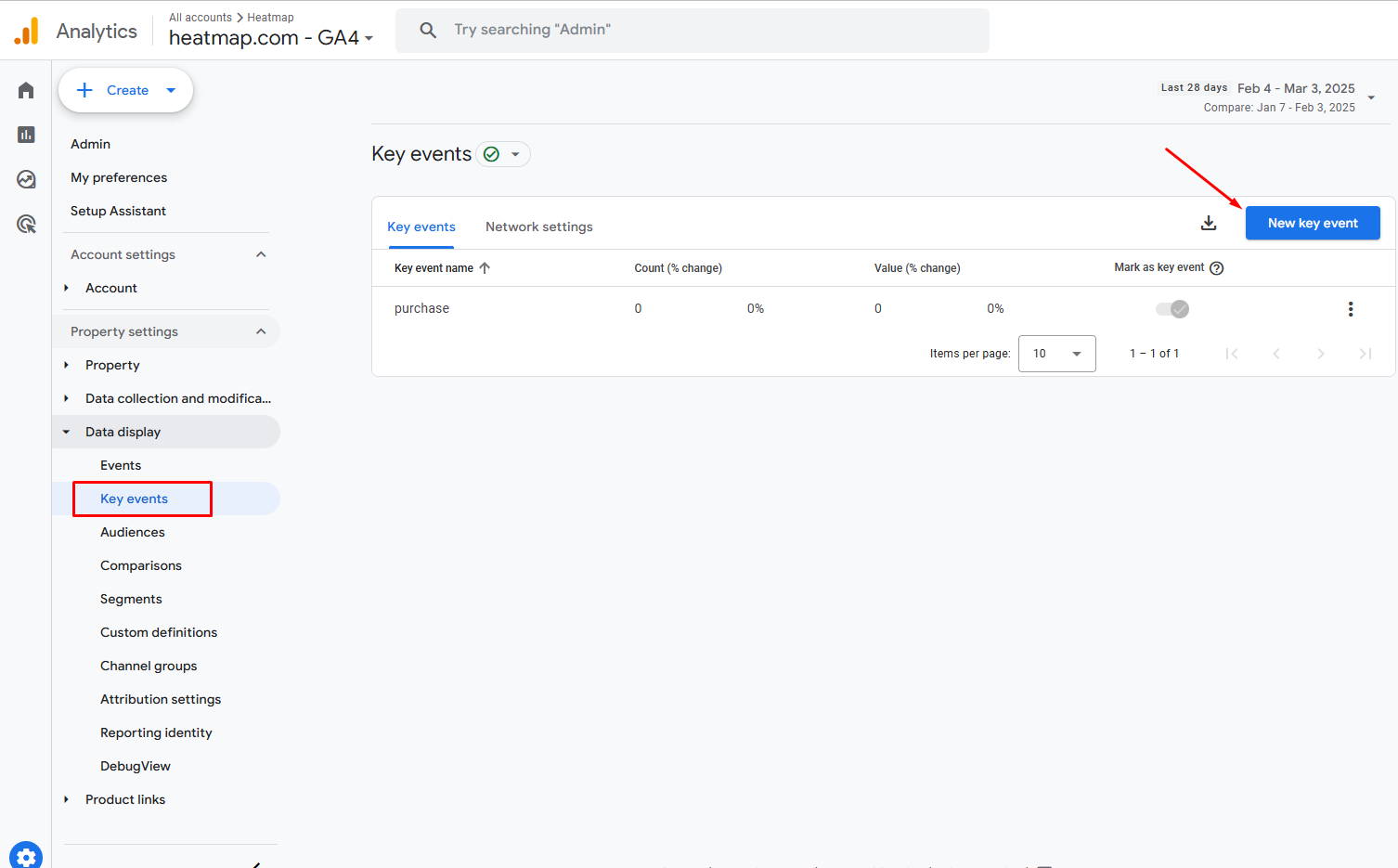
4. Add the name of your event you've just created in GTM and click on Save.
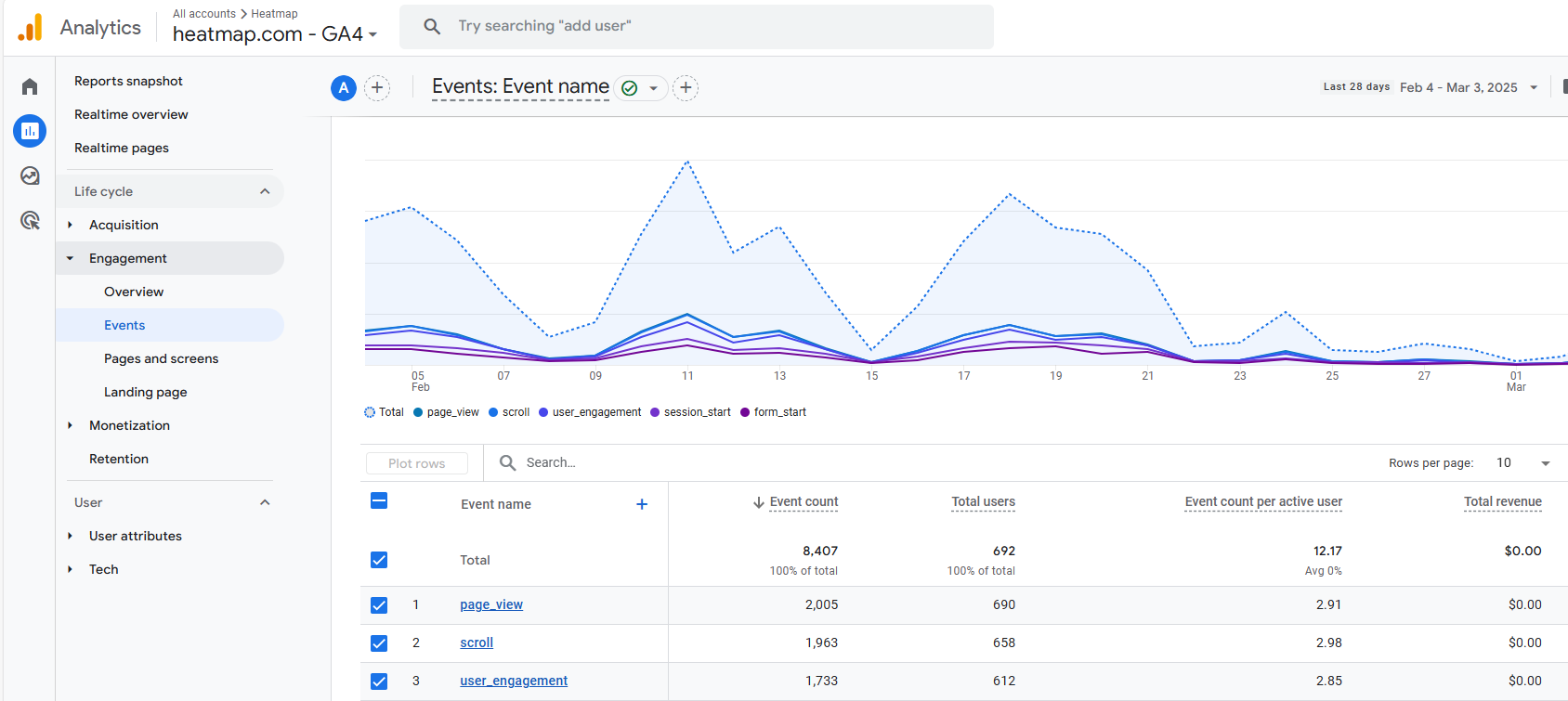
5. This event later will show in Google Analytics > Reports > Engagement > Events.
Set Up Reporting in GA4
For deeper analysis, you can create custom reports in GA4:
- Navigate to Explore > Free Form report.
- Add Event Name > exactly matches > button_click as a filter.
- Include dimensions such as page URL, click variables, and outbound links.
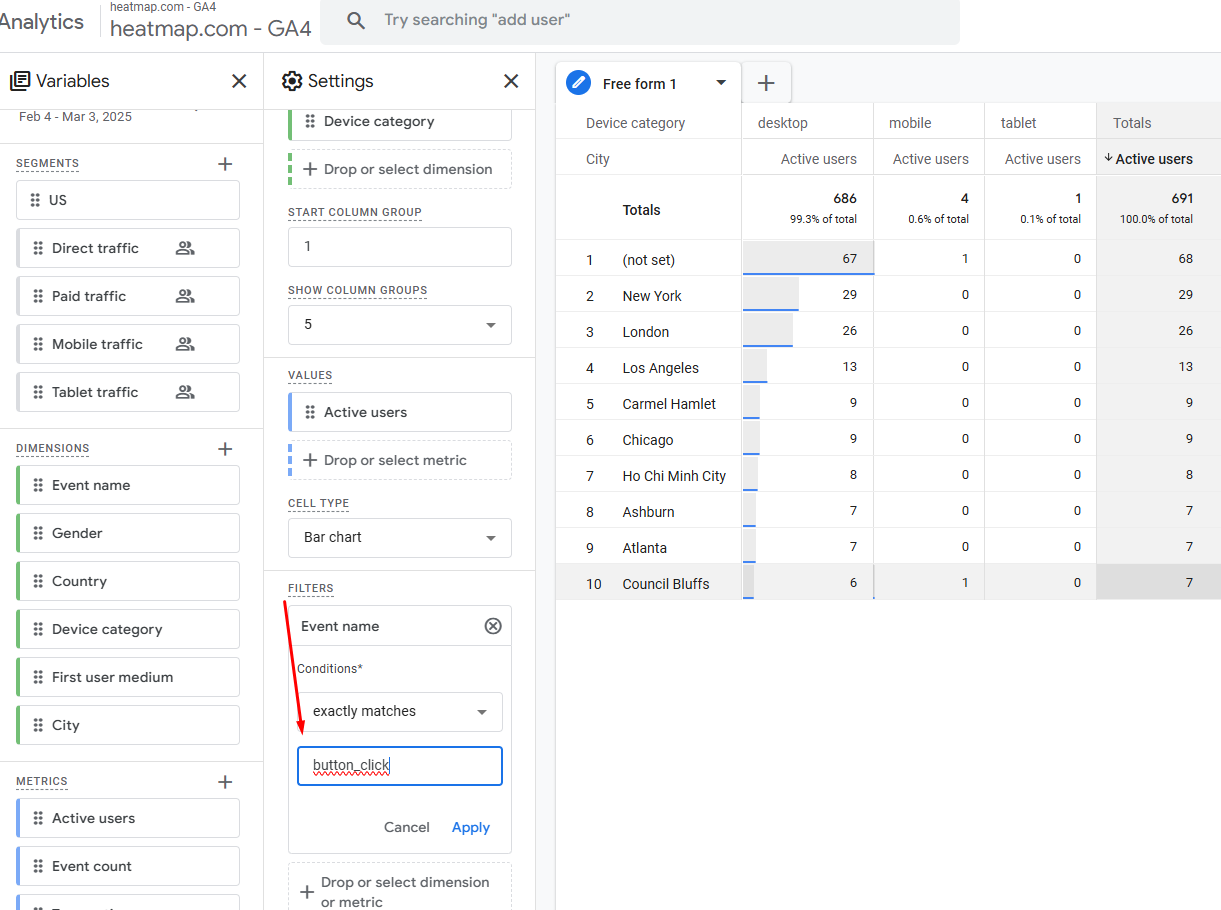
This allows you to track user interactions specifically related to button and link clicks. By analyzing these events over time, you can optimize your website or online store based on real user click data.
Wait, Should You be Using GA4 for Tracking Clicks and Analytics
Google Analytics 4 is a powerful tool for tracking user behavior, but it’s not perfect. While it offers button click tracking, event and custom event parameters, and custom reports, there are limitations that might impact how you analyze and how to track button clicks in Google Analytics 4 itself.
Limited Automatic Click Tracking: GA4 tracks outbound link clicks and file downloads, but button clicks, form submissions, and custom interactions require you to install Google Tag Manager. Unlike older versions of Google Analytics, GA4 doesn’t provide built-in click event tracking for all elements.
No Native Heatmaps or Session Recordings: GA4 tells you what happened but not why. It lacks tools like heatmaps, session recordings, and detailed user behavior insights. If you want to identify frustration points—such as users repeatedly clicking on non-functional elements (rage clicks) or interacting with unresponsive areas (dead clicks)—you’ll need additional tools.
Delayed & Sampled Data: GA4 can take hours to process event tracking data. For high-traffic websites, reports may be sampled, meaning some user interactions—such as clicks—might not be included. This can affect the accuracy of your analysis.
Complex Setup for Custom Events: Tracking button clicks in Google Tag Manager (GTM) and Google Analytics 4 (GA4) requires configuring custom event parameters, creating a new trigger, and manually defining event names. For beginners, setting up variables, configuring custom dimensions, and filtering click variables in GTM can feel overwhelming.
No Built-in Revenue Attribution for Clicks: GA4 doesn’t directly link button clicks to revenue per session in its standard reports. If you want to analyze how button click events impact conversions, you’ll need to set up custom reports and adjust your data model to track the correlation effectively.
While GA4 is useful for tracking setup, click tracking, and event logging, businesses seeking deeper insights should consider additional tracking tools to gain better visibility into user behavior and interaction patterns.
heatmapAI - #1 Alternative to GA4 for Click Tracking and Driving Higher Conversions
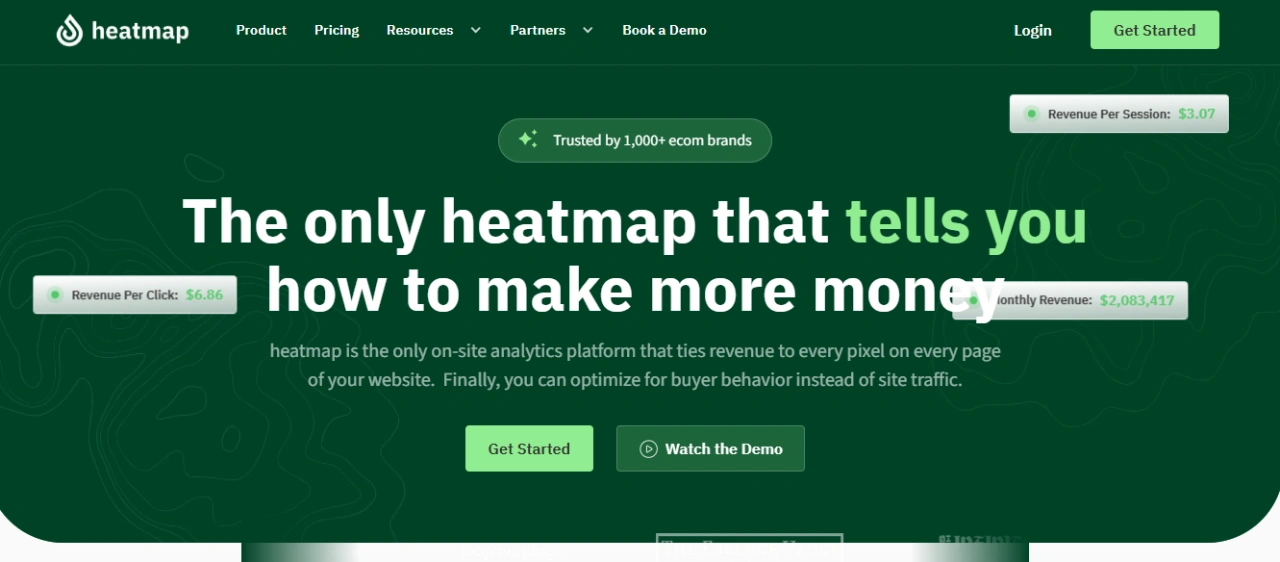
Google Analytics 4 helps with click tracking, but it falls short when it comes to understanding why users click (or don’t). That’s where heatmap.com goes further. It’s not just a click tracker—it’s a revenue-focused analytics platform that helps you see exactly how website visitors interact with every element on your site.
Unlike GA4, heatmapAI ties the data model every button click, link click, and scroll action directly to revenue, giving eCommerce brands the insights they need to increase conversions and optimize the user journey.
Why Choose heatmap.com Over GA4?
| Feature | Google Analytics 4 | heatmap.com |
|---|---|---|
| Click Tracking | ✅ Yes (requires manual setup) | ✅ Yes (auto-tracks all clicks) |
| Revenue-Based Heatmaps | ❌ No | ✅ Yes, tracks revenue per click |
| AI-Powered CRO Insights | ❌ No | ✅ Yes, 500+ AI recommendations |
| Scroll Maps | ❌ No | ✅ Yes, tracks drop-off points |
| Screen Recordings | ❌ No | ✅ Yes, anonymized visitor sessions |
| JavaScript Error Tracking | ❌ No | ✅ Yes, identifies site errors |
| Comparison Mode | ❌ No | ✅ Yes, compares user behaviors (e.g., high vs. low AOV customers) |
| Real-Time Tracking | ❌ Delayed | ✅ Yes, real-time interaction insights |
| Privacy-Focused Analytics | ✅ Yes | ✅ Yes, fully GDPR & CCPA compliant |
How heatmap.com Helps Optimize Conversions
- Revenue-Based Heatmaps – See which buttons, links, and page elements drive the most revenue.
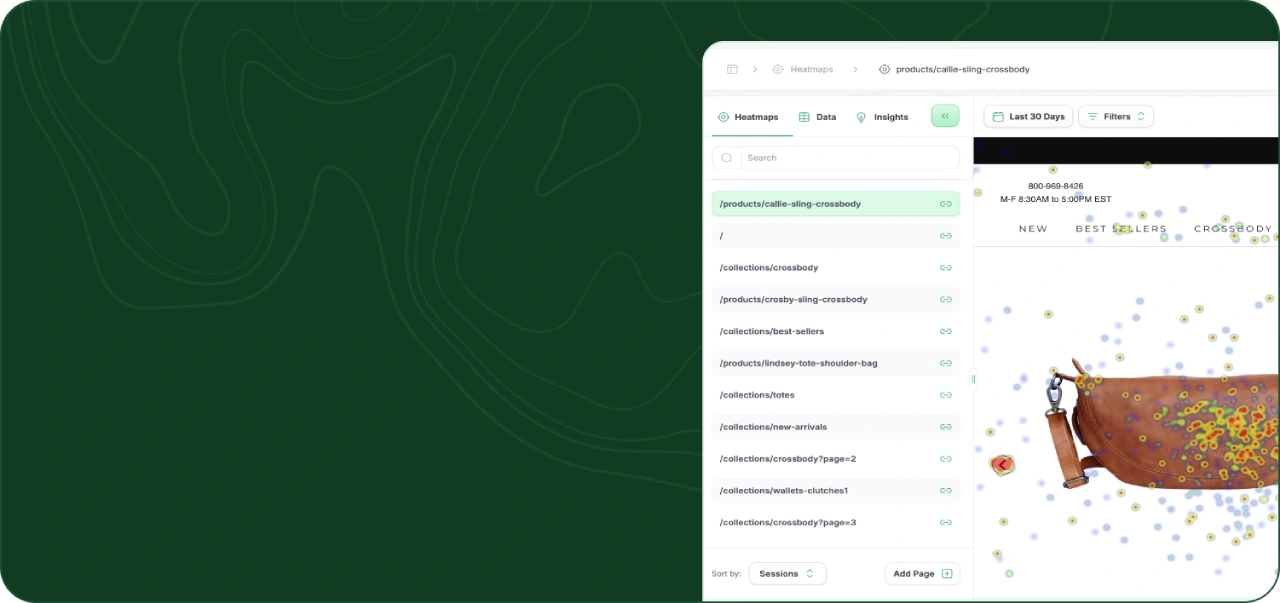
- AI-Powered CRO Insights – Get over 500+ AI-generated recommendations on button placement, CTA copy, and UX improvements to drive higher conversions.
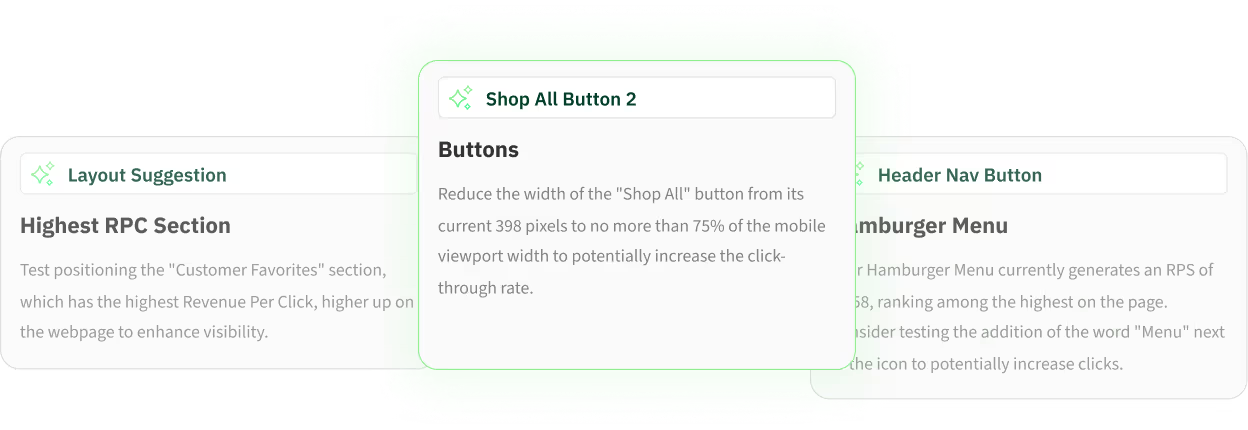
- Scroll Maps – Track where users drop off and which sections get the most engagement.
- Screen Recordings – Watch real visitor interactions to understand why users leave or abandon key actions.
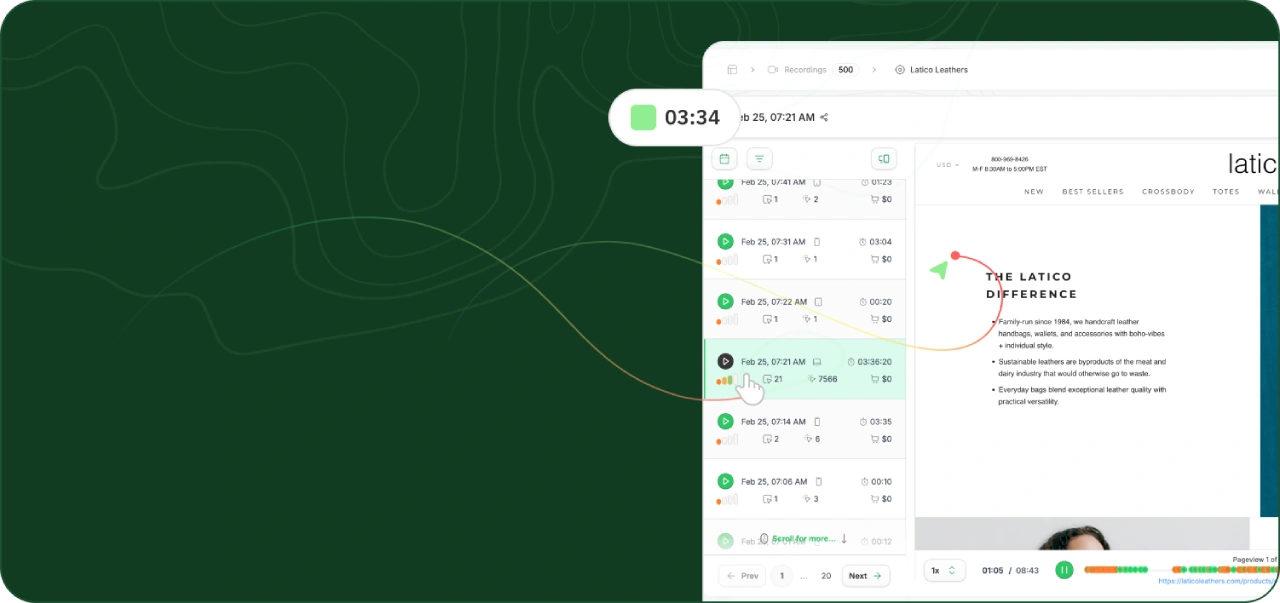
- Comparison Mode – Analyze click tracking for different user groups—e.g., purchasers vs. rage clickers, new vs. returning visitors, or high vs. low AOV customers.

- JavaScript Error Tracking – Identify broken buttons, forms, or slow-loading elements affecting button clicks and form submissions.
- Seamless Integrations – Compatible with all major eCommerce CMS platforms, requiring no additional setup.
If you want deeper insights into user behavior, button clicks, and event tracking, heatmap.com is the best alternative to GA4 for boosting conversions and revenue per session.
Our Client Increased their Conversion Rate by 4.69% 👇
Obvi, a DTC brand, faced challenges scaling profitably while maintaining high conversion rates. They initially used Microsoft Clarity, but its lack of revenue-based analytics made it difficult to track which clicks led to actual sales.
After switching to Heatmap.com, they gained access to AI-powered CRO insights, revenue-based heatmaps, and scroll maps. A key insight? Their main CTA button was below the fold, reducing visibility. HeatmapAI recommended moving it up, which led to:
✅ +4.69% increase in Conversion Rate
✅ +7.81% increase in Revenue Per Session
✅ $2.5M added revenue in the first month
"With heatmap, I've been able to figure out what elements actually increase AOV and optimize our landing pages to drive more first purchase profitability. We're up 23% YoY."
~ Ash Melwani, Co-Founder & CMO @Obvi
Want similar results?
Obvi Added $2.5M Revenue in Their First Month with heatmapAI
By using heatmapAI, Obvi addressed a common challenge for scaling DTC brands: balancing growth and profitability. They leveraged actionable insights to identify which elements increased AOV and optimized landing pages to drive more first-purchase profits.
100x
ROI with Obvi's first month using heatmap
$2.5M
in added revenue using our CRO recommendation engine
+7.81%
Increase in Revenue Per Session
We're the Best? Says our Clients who Scored Millions in Revenue!

With heatmap, I've been able to figure out what elements actually increase AOV and optimize our landing pages to drive more first purchase profitability, we're up 23% YoY.

Winning Split Tests #1 - Collection Page Optimization. +$71,286 per month in revenue with 97% significance.
1: Download heatmap.com
2: Wait for 5k sessions
3: Reorganize products based on the highest revenue per session from top left to bottom right.

Heatmap is a non-negotiable for all Ecom stores! Read this now!

Don't sleep on heatmap! You could be just a few tweaks away from changing the course of your business.
What Insights Can You Gain from Click Tracking Data
Click tracking goes beyond basic interaction monitoring—it reveals how users engage with key elements on a page and where they encounter friction. By analyzing click data, businesses can identify patterns that impact conversions, such as overlooked CTAs, confusing navigation, or ineffective page layouts. Understanding these behaviors helps refine site design, improve user flow, and create a more seamless experience that drives higher engagement and revenue.
Understanding User Engagement Patterns
Click tracking helps identify which page elements attract the most attention. Standard tracking tools provide raw click data, but true optimization comes from analyzing patterns, such as which CTAs drive engagement, where users hesitate, and how they navigate your site. Features like scroll maps and session recordings help visualize user behavior, ensuring critical elements like buttons, product images, and navigation menus are placed effectively.
Identifying High-Value Conversion Opportunities
Not all clicks contribute to revenue—some are incidental interactions that don’t lead to conversions. To increase revenue per session (RPS), businesses need to distinguish between high- and low-value interactions. Advanced tracking tools like heatmapAI can correlate button clicks, checkout interactions, and engagement with key CTAs to actual sales performance, helping brands refine their layout, messaging, and calls-to-action (CTAs) for higher conversion rates.
Enhancing Conversion Rate Optimization (CRO) Strategies
Knowing where users click most—and where they don’t—is essential for refining CRO strategies. Google Analytics' event parameters track link clicks and button clicks, but heatmapAI provide over 500+ CRO recommendations to improve CTA placement, page structure, and content hierarchy. These insights help optimize form submissions, outbound links, and button visibility to increase conversions.
Uncovering Hidden Pain Points or Frustration Areas
Repeated clicks on unresponsive elements (rage clicks) indicate user frustration, yet most analytics tools don’t capture this. Identifying broken buttons, unclickable elements, or confusing design choices is crucial for reducing friction. Tracking dead clicks—where users expect an action but nothing happens—helps brands fix misleading UX elements and create a frustration-free experience.
heatmapAI - #1 GA4 Alternative on the Market!
heatmapAI isn’t just a Google Analytics 4 alternative—it’s a revenue-focused CRO tool that goes beyond click tracking. While GA4 provides basic event tracking, heatmapAI delivers AI-powered insights, revenue-based heatmaps, and scroll maps, helping eCommerce brands increase conversions and revenue per session with actionable, data-driven recommendations.
Why heatmapAI Is the Best GA4 Alternative
✅ Tracks revenue per click – See how clicks impact revenue.
✅ AI-powered CRO insights – 500+ CRO recommendations.
✅ Scroll maps & screen recordings – Understand why users drop off, not just where.
✅ Fixes usability issues – Detects rage clicks, dead clicks, and JavaScript errors.
✅ Better A/B testing – Compare high vs. low AOV customers for smarter optimizations.
If you need revenue-based heatmaps, AI-driven CRO insights, and deep user behavior tracking, heatmapAI is the perfect choice. But if you’re looking for basic pageview analytics and traffic reports, Google Analytics 4 might be a better fit.
Try heatmap.com | Your eCommerce site will thank you (so will your wallet)
We are the only onsite analytics platform that tells you how to make more money - down to the pixel. Trusted by 1000+ eCommerce brands.
Ashvin Melwani
@ashvinmelwaniWith heatmap, I've been able to figure out what elements actually increase AOV and optimize our landing pages to drive more first purchase profitability, we're up 23% YoY.

💡 Read Next: How heatmap Generated $600,000 for a Client

Dylan AnderPublished December 1, 2025